

The list below has the most frequently asked questions for Luxor Cloud as well as topics covered for troubleshooting.
- The four-digit verification code is not showing up on the controller?
- The OTA (Over-the-air) firmware update feature is not working?
- Can I still use Direct Connect or Network mode with the latest version of the Luxor App?
- How do I add multiple controllers?
- Luxor App is requesting to use my “cellular data”?
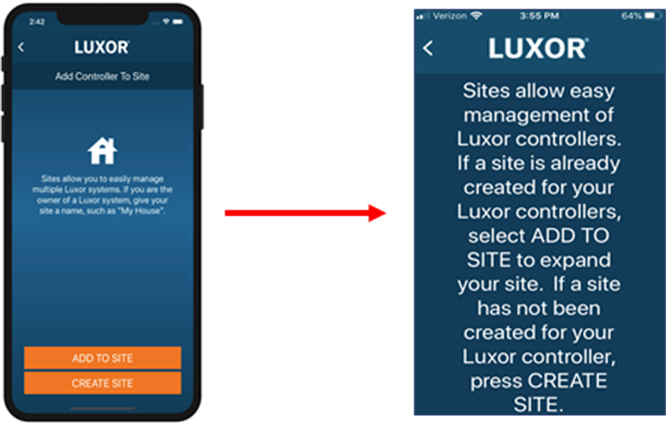
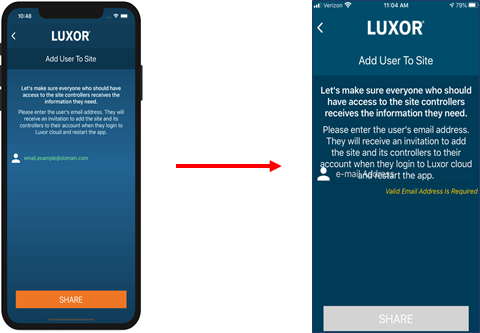
- The orange buttons not visible or partially visible on the screen?
- The text is in the Enter Site Name or Enter Email Field
- Max Users and Sites
There is a quick three-step troubleshooting process to determine why the code is not appearing. The steps are to verify correct firmware, verify users are on the correct screen and verify all network tests have passed.
1. Facepack firmware must be v0.33. For information on updating the firmware, please visit the section here.

2. The user must be on the Luxor controller WIFI/LAN setup screen before pressing NEXT in the app on the Add Controller page. For more information on adding a controller, visit the support section here.
NOTE: The STATIC IP Address box should remain unchecked.
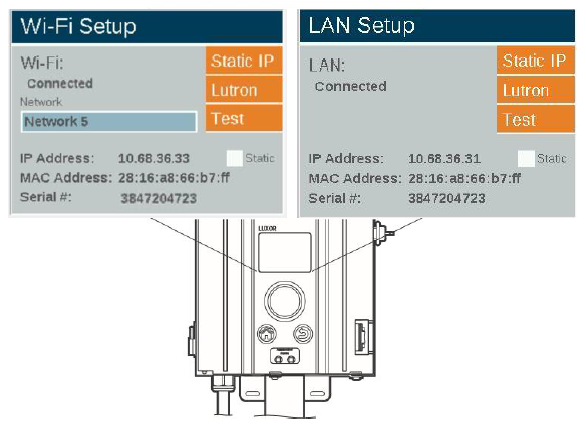
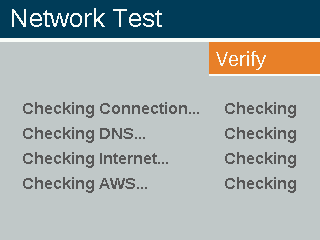
3. The network test is designed to verify that each step in the network setup process is OK in order to access the Cloud. If any of the steps fail, then the four-digit code will not be displayed. The steps include: Checking Connection, Checking DNS, Checking the Internet, and Checking AWS. For a better understanding of each step, please see the article here.
If the user is going from Facepack firmware v0.28 → v0.33, then they must first be in Network mode (TURN OFF CLOUD) in order for the app to recognize a new version of firmware is available. If your Luxor does not have version 0.28 or higher, you will need to update the firmware with an SD Card. Learn More
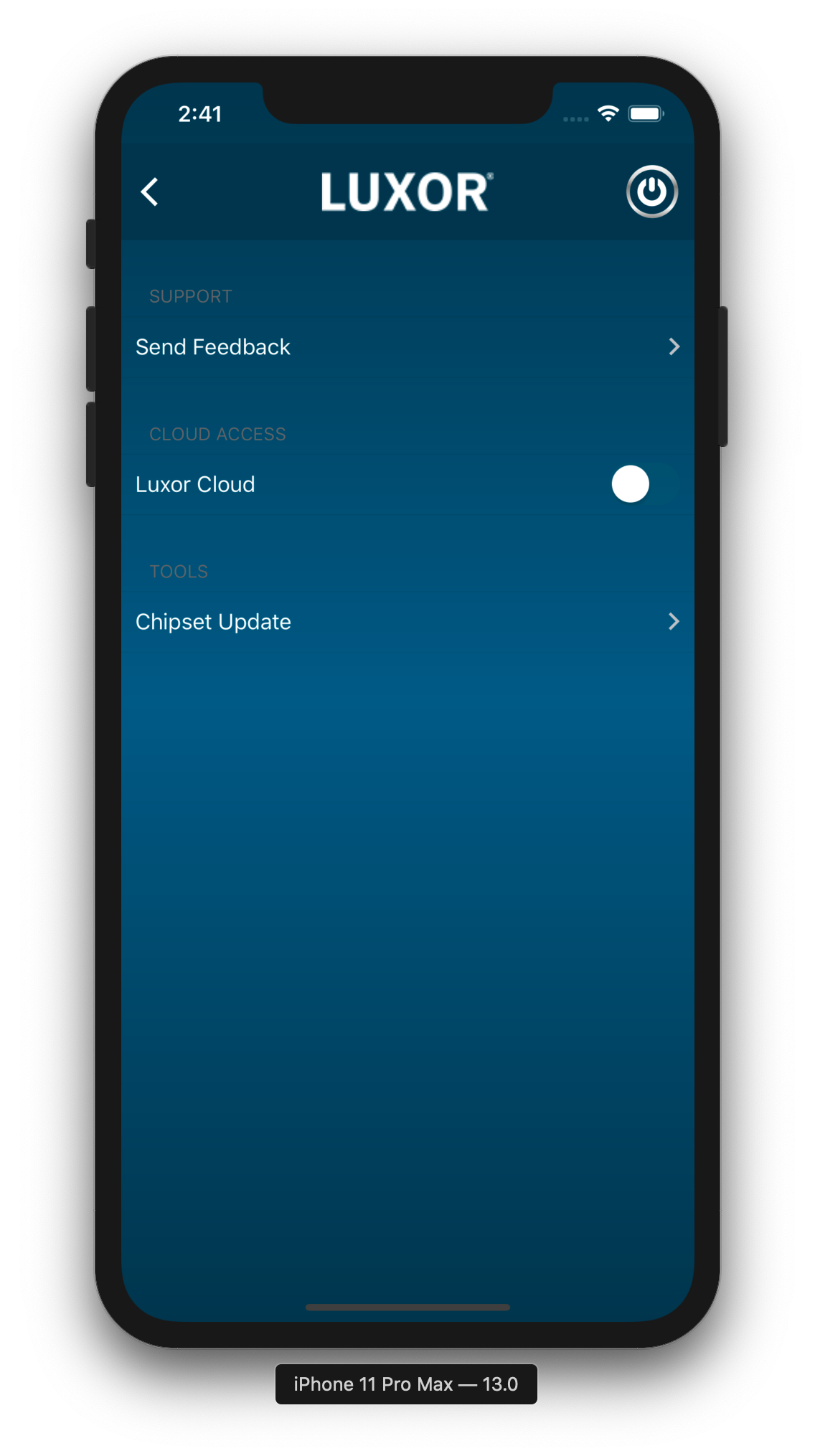
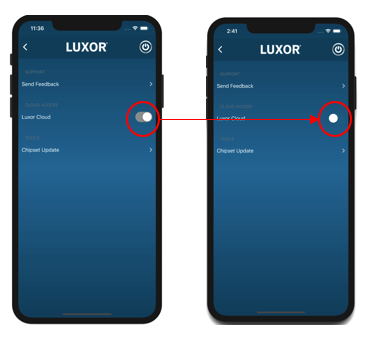
Yes. Open the Luxor app and turn OFF the Luxor Cloud feature. Once Luxor Cloud is disabled, connect to local network or direct connect to Luxor controller. A quick way to verify you are out of Cloud mode is site name will not appear on the home screen.
Enter the desired Site and go to Controllers page. Press +. For more information, visit support article here.
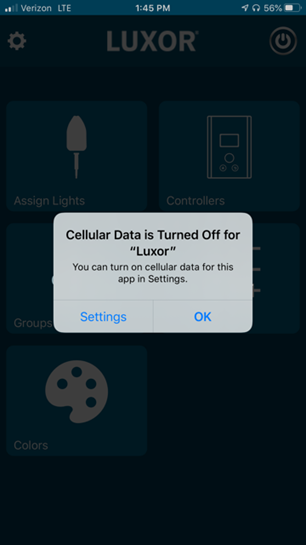
Here are the steps:
1. Select OK or go to phone settings and turn ON cellular data.
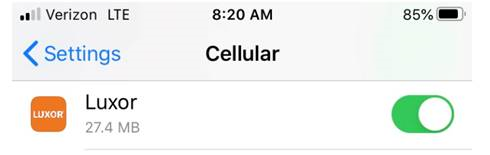
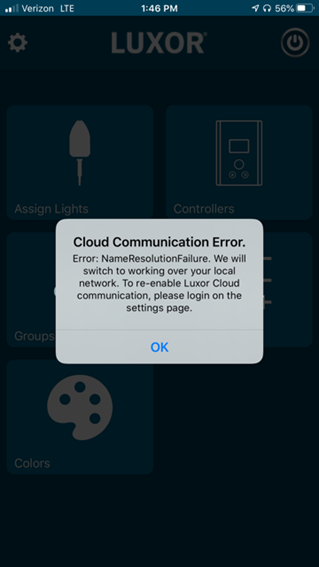
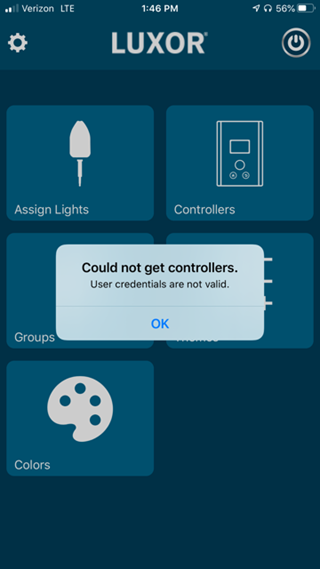
2. Close app (double click and swipe up) and restart. If app is not closed, the following error message(s) will appear.
- Click on SETTINGS.
- Scroll and select DISPLAY AND BRIGHTNESS.
- Scroll down to DISPLAY ZOOM.
- Select VIEW.
- Select STANDARD.
- Select SET.
- Select STANDARD.
The iphone will reset and the view within the app will appear normal.
Users Per Site: Unlimited.
Controllers Per Site: We support up to 10 primary controllers (Luxor with facepack) per site.
Still need help? We're here.
Tell us what you need support with and we'll find the best solution for you.