

Welcome Page Body
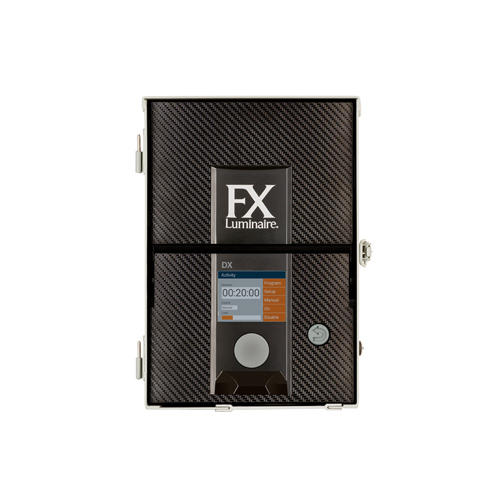
Welcome to the DX Controller Support Section. Here you will find instructions to install and program your landscape lighting controller. Proper installation and setup will allow you to take full advantage of all the features the DX Controller has to offer.
Section Menu
Support Topics
Components
-
Components
Spare Parts Qty. part Description 1 DX-FP Front Panel 5 250033980000SP Back of facepack ribbon cable
Owners Manual
Safety Information
-
Safety Information
These cord-connected units consist of step-down, isolated, two-winding-type transformers, circuit breakers, and associated circuitry intended to supply power to low-voltage and
Installation
-
Placing the Transformer
Place transformer(s) in a well-ventilated area away from direct irrigation spray and central to the proposed installation site of the majority of the lighting fixtures. The
-
Mounting the Transformer
Wall-Mount Installation: Install all transformers a minimum of 12″ above the finish grade (as measured from the finish grade to the bottom of the transformer) and according
-
Running Cable to Fixtures
Once the transformer has been installed and all fixture locations have been determined, the next step is to run a correctly sized cable from the transformer to the fixtures. FX
-
Loads Per Cable
For maximum light output and LED life, each luminaire should be provided with between 10 to 15 volts. Cable Stats Low-voltage lighting systems are typically installed
-
Installing Multiple Transformers
The DX Transformer can be controlled from another transformer via the 1–24 volt EXTERNAL connection. If you have multiple transformers on a single site, a PRIMARY transformer can
Programming
-
Home and Setup Screens
Navigating the DX The DX controller contains two user interface elements: The clickable scroll wheel is the primary navigationand selection element. The BACK
-
Time/Date
Set the three date categories (Month, Day, Year) to the current date by pushing the scroll wheel when the appropriate field is highlighted, scrolling through the options, and
-
Language
In the SETUP screen, select the language field by pressing the scroll wheel and turning it to the desired language. Press the scroll wheel again to finalize the selection.
-
Location
The LOCATION menu is designed to graphically represent a DX controller’s location on a map for accurate sunrise and sunset times based on the current date, time zone, and
-
Backup
The BACKUP function saves all user input information, including programs and setup data. To create a backup file for your DX controller, follow the steps below: Remove the
-
Disable (System OFF)
The DISABLE option completely shuts down all lighting events in the MANUAL and PROGRAM modes regardless of time or status, indefinitely. This mode does not turn off the unit, but
-
Manual Mode
The manual mode is used to turn on lights outside of set programs. Manual settings take precedence over any currently running or future programs if overlapped with the event time.
-
Programs
The PROGRAMS screen is where all daily running programs are configured. Each program is designated by a letter ("A" through "G") at the top right section of the screen.
-
Activity
After five minutes of inactivity, an ACTIVITY screen will appear on the LCD screen if the transformer is under load. The inactivity wait time decreases to five seconds when the
FAQ's
-
Fuse Replacement
If the DX transformer does not power on THE LOW VOLTAGE TERMINALS when plugged into a working outlet, the internal fuse may need to be replaced. NOTE: The front panel will still
-
DX - Upgrading the LX Transformer
Upgrading the LX face panel with the DX version will allow you to have all the great features of the DX transformer in just a view simple few steps. New features include:
Firmware
-
Firmware
The DX occasionally updates firmware to add features or enhance functionality. To update the facepack or flash firmware on the DX, an SD card is required to transfer the data from
Care and Maintenance
-
Care and Maintenance
Perform the following regular preventative maintenance procedures: Category Description Timeline Transformer Tighten all terminal lugs.
Warranty
-
Warranty
Hunter Industries Incorporated ("Hunter") warrants FX Luminaire ("FX") Transformers to be free of defects in materials or workmanship under normal use for a period of ten (10)